tldr: Chrome updates faster than your tests can keep up. Every four weeks, a new version ships with changes that can break your checkout flow, login forms, or payment processing. Chrome flags give you early access to experimental features before they reach two billion users. This guide covers 12 flags that matter for QA engineers in 2026, including five new capabilities from Chrome 132-144.
From reactive to proactive
The traditional testing workflow assumes browsers are stable platforms. You write tests against Chrome 132, run them in CI, ship to production, and hope nothing breaks when Chrome 133 arrives.
This worked when browsers updated annually. It doesn't work when Chrome ships 13 major releases per year.
Your tests work Monday. Chrome updates Wednesday. Thursday, your login flow breaks because Chrome changed how it handles focus events or form autofill. By the time you notice, users are complaining.
Chrome flags solve this.
Flags are Chrome's mechanism for shipping features incrementally. Instead of flipping a switch for two billion users simultaneously, Chrome introduces features as experimental flags first. Developers can test them. Report issues. Help refine behavior before the feature graduates to stable.
This creates an opportunity. QA engineers who test against flags catch breaking changes before they reach production. You're testing what's coming, not just what exists.
I believe every QA team should adopt flag-based testing. Not because it's best practice, but because it's the only way to stay ahead of browser evolution.
The flags system: How Chrome ships features
Chrome development happens in the open. New features land in Canary builds first. They're hidden behind flags - experimental switches that enable in-progress work.
When you visit chrome://flags, you're looking at Chrome's roadmap. Features that might ship in three months. Features that might never ship. Features that are shipping gradually to measure impact.
The lifecycle looks like this:
Experimental → Default enabled → Stable
Some flags never graduate. Chrome removes them when usage data shows low adoption or when they cause stability issues. Others become default behavior within months.
This gradual rollout protects users. But it creates a testing challenge: how do you validate your app against upcoming Chrome behavior without maintaining five local Chrome installations?
The answer is flag-based testing in CI, combined with multi-version test execution. More on that later.
Twelve flags that matter
The Chrome flags page lists hundreds of experiments. Most don't matter for QA. These twelve do.
Performance: Testing what's coming
Parallel Downloading
chrome://flags/#enable-parallel-downloading or --enable-features=ParallelDownloading
Chrome traditionally downloads files sequentially. This flag enables parallel downloading - splitting files into chunks and downloading them simultaneously.
Still experimental. Not yet in stable Chrome. But if your app involves file downloads, exports, or asset-heavy workflows, testing this matters. Your 100MB CSV export that takes 30 seconds could drop to 10 seconds when this graduates.
The trade-off: requires server support for HTTP range requests. Not all CDNs handle this correctly. Test early to catch issues.
Back-Forward Cache (bfcache)
chrome://flags/#back-forward-cache or --enable-features=BackForwardCache
Graduated to stable in Chrome 125. Enabled by default. Chrome now stores navigated pages in memory for instant back/forward navigation.
The performance impact: pages load in under 100ms instead of 1-3 seconds.
The testing impact: if your app breaks when users hit the back button, you'll notice immediately. Single-page applications that assume fresh page loads can break. WebSocket connections disqualify pages from bfcache. Unload handlers disqualify pages.
Use DevTools → Application → Back-forward cache to debug why your pages aren't caching.
Note: you may need to disable this flag (--disable-features=BackForwardCache) to test full reload scenarios. Some apps expect fresh state on every navigation.
GPU Rasterization
chrome://flags/#enable-gpu-rasterization or --force-gpu-rasterization
Moves pixel rendering from CPU to GPU. 4-10x faster. 5ms per frame instead of 20-50ms.
Chrome enables this automatically on modern hardware. The flag forces it on, ensuring consistent rendering across test runs.
Visual regression testing depends on pixel-perfect consistency. GPU rasterization delivers that. But GPU rendering differs slightly from CPU rendering. Test both to catch platform-specific issues.
In CI environments without GPU access, disable with --disable-gpu. Your tests will crash otherwise.
Visual: Rendering as a moving target
Force Dark Mode
chrome://flags/#enable-force-dark or --enable-features=WebContentsForceDark --force-dark-mode
Sixty percent of users prefer dark mode. If your app doesn't implement it natively, Chrome inverts your UI automatically. This often produces terrible results - inverted logos, poor contrast, unreadable text.
This flag shows you what Chrome's auto dark mode does to your site. Test it. Fix the issues. Or build native dark mode.
Still experimental after years. Chrome hasn't shipped this to stable because the quality varies too much across sites.
WebGPU
chrome://flags/#enable-unsafe-webgpu (Linux only) or --enable-features=UnsafeWebGPU
WebGPU graduated to stable in Chrome 113. No flag needed on Windows, macOS, or ChromeOS. Just use navigator.gpu.
Linux remains experimental. Requires the flag.
Why this matters for testing: WebGPU enables high-speed ML inference in the browser. 3x faster than WebGL. If you're testing ONNX Runtime or Transformers.js applications, WebGPU is how you get performance.
Always check navigator.gpu exists before using it. Not all hardware supports WebGPU. CI environments definitely don't have GPU passthrough.
AI & Security: The new surface area
This is where Chrome's evolution gets interesting. The browser is no longer just a document viewer. It's an AI platform.
Gemini Nano On-Device AI
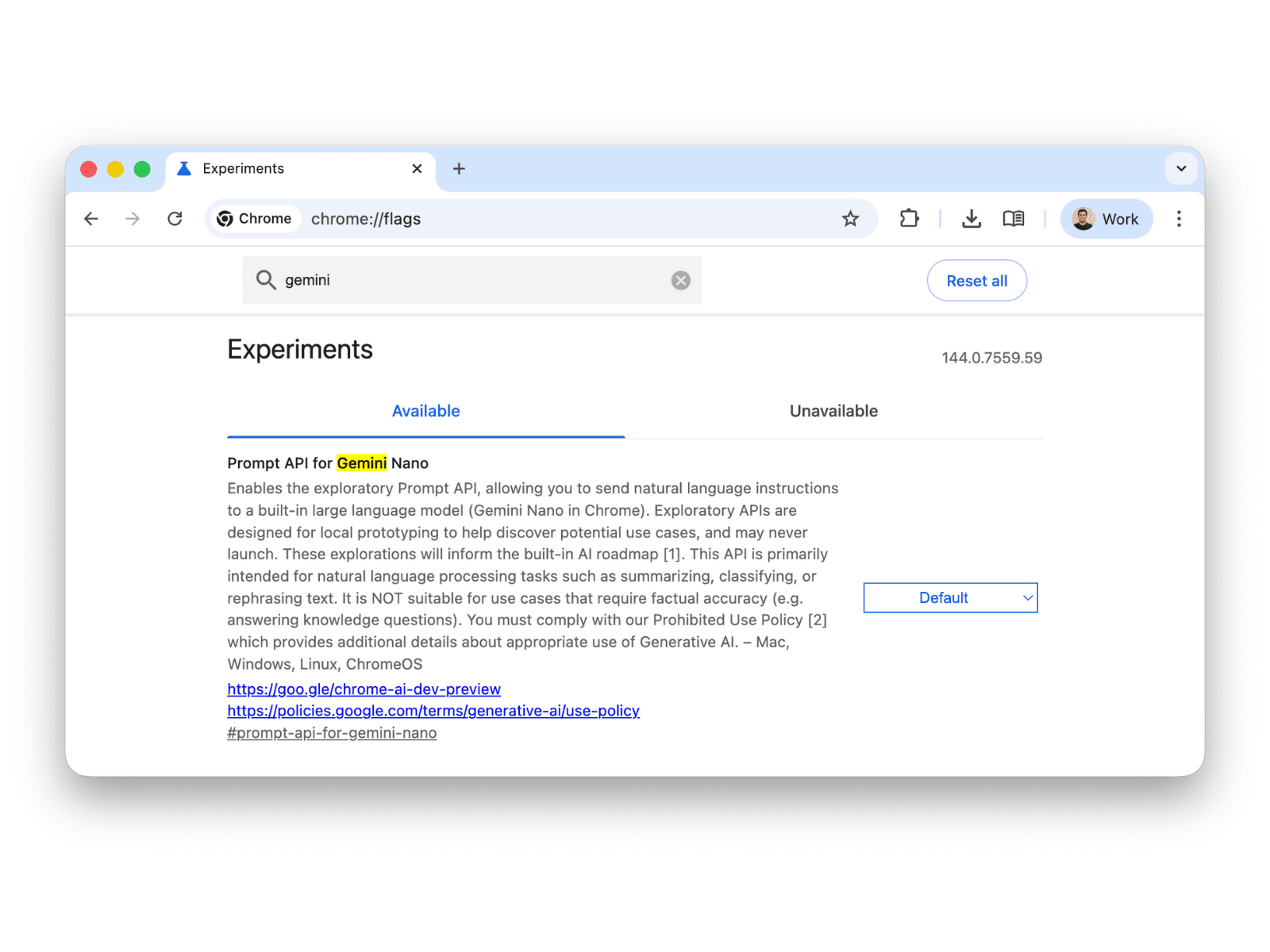
Two flags: chrome://flags/#optimization-guide-on-device-model + chrome://flags/#prompt-api-for-gemini-nano
No command-line equivalent. Manual setup only.
This enables Chrome's on-device AI model. The foundation for Chrome's AI APIs - Summarizer, Translator, Writer, Rewriter.
Chrome 127+ Dev/Canary only. Not in stable Chrome. Requires 22GB disk space, 4GB VRAM, and manual model download via chrome://components.
If you're testing AI-powered features, check whether Chrome's model interferes with yours. On-device inference means Chrome can run AI without network requests. This changes testing assumptions.
Can't automate in CI. Requires manual setup. This is for testing future AI features, not production validation.
On-Device Scam Detection
Search for "Client Side Detection Brand and Intent for Scam Detection" in chrome://flags
Chrome 137+ with Enhanced Safe Browsing enabled.
Chrome now uses Gemini Nano to detect scams in real-time. On-device. Before pages even load. The average malicious site exists for less than 10 minutes - too fast for traditional blocklists. On-device AI catches them anyway.
If your site has pop-ups or support chat widgets, test this. Make sure Chrome doesn't classify your legitimate support flow as a scam.
Privacy is preserved. The model runs locally. Enhanced Protection users share anonymized signals with Safe Browsing to improve detection. Standard Protection users benefit indirectly from updated blocklists.
ML-Enhanced Password Autofill
chrome://flags/#enable-autofill-virtual-view-structure
Chrome 134+ (February 2025 rollout)
Chrome now uses machine learning to recognize password forms. Trained on millions of forms. 95% accurate versus 80-85% with heuristics.
Your login form non-standard? Email on page one, password on page two? Chrome's ML might guess wrong. Test this flag to find out.
Third-party password managers (1Password, Bitwarden) use Chrome's autofill API. This flag affects all of them. Test your custom forms to validate the 5% edge cases where ML fails.
DevTools: New testing primitives
Individual Request Throttling
chrome://flags#devtools-individual-request-throttling
Chrome 144 Canary introduced granular network control that changes how we test performance.
The problem with traditional network throttling: you slow down everything to test one slow API. Your UI, images, assets - all artificially delayed. This doesn't reflect reality. Real users hit slow APIs while everything else loads fast.
The new approach: right-click any request in DevTools, throttle just that URL or domain. Your checkout API runs at 3G speeds. Product images load normally. This is realistic testing.
Throttled requests show in yellow with a clock icon.
The DevTools team took three years to ship this. It was worth the wait.
Privacy Sandbox Third-Party Cookie Testing
chrome://flags#test-third-party-cookie-phaseout or --test-third-party-cookie-phaseout
Chrome 132+ (January 2025)
Third-party cookies are being deprecated in 2026. This flag lets you test your site without them before Chrome ships the change to two billion users.
What breaks without third-party cookies:
- Social login (Facebook, Google buttons)
- Analytics (Google Analytics, Mixpanel)
- Embedded content (YouTube, Stripe payment forms)
- Cross-domain auth flows
Use DevTools → Application → Privacy & Security panel (Chrome 134+) to debug blocked cookies.
Test checklist:
- Login/logout functionality
- Analytics event tracking
- Payment form submission
- Embedded widget loading
If you're not testing third-party cookie deprecation now, you're behind. Chrome ships to production in Q2 2026.
Infrastructure: The constants
Some flags don't change. They're infrastructure requirements that persist across Chrome versions.
Headless Mode
--headless
Stable. Default since Chrome 132 (January 2025).
Chrome traditionally had two headless modes. Old headless (separate binary, limited features). New headless (full Chrome features). As of Chrome 132, new headless is the default.
If your tests relied on old headless behavior, they broke in January 2025.
Just use --headless. Don't use --headless=old unless you have a specific reason.
Common headless flags for CI:
const browser = await chromium.launch({
  headless: true,
  args: [
    '--disable-gpu',
    '--no-sandbox',
    '--disable-dev-shm-usage',
    '--remote-debugging-port=9222',
    '--window-size=1920,1080'
  ]
});
GPU flags behave differently in headless. Test both headful and headless if GPU rendering matters.
Docker/CI Flags
--no-sandbox, --disable-dev-shm-usage, --disable-gpu
Standard Docker best practices for running Chrome in containers.
Why you need these:
--no-sandbox: Chrome's sandbox requires kernel user namespaces. Docker (running as PID 1) doesn't have them. This is a security trade-off, acceptable in isolated test environments.
--disable-dev-shm-usage: Docker's default /dev/shm is 64MB. Chrome needs more for shared memory. Without this flag, Chrome crashes with "session deleted because of page crash."
--disable-gpu: CI environments don't have GPU access.
Security warning: --no-sandbox disables Chrome's security sandbox. Only use in isolated CI. Never in production or user-facing systems.
Playwright automatically handles these flags when it detects Docker.
Cross-version testing at scale
Here's the real challenge.
Chrome 130, 131, 132, 133 all behave differently. A flag exists in Chrome 144 but not Chrome 140. Flag behavior changes between versions. Some flags are only available in Canary.
You can't test all these versions locally. You'd need:
- Chrome 130 (stable from September 2025)
- Chrome 131 (stable from October 2025)
- Chrome 132 (stable from November 2025)
- Chrome 133 (stable from December 2025)
- Chrome 144 (Canary as of January 2026)
That's five local Chrome installations. Impractical for most teams.
Where most teams give up
The typical workflow: test on your local Chrome version. Hope it works on other versions. Ship it. Then production breaks because Chrome 144 changed how bfcache handles Cache-Control: no-store.
This is where Bug0 Studio becomes relevant.
Bug0 handles multi-version testing automatically. You don't install multiple Chrome versions. You don't manage browser binaries. You generate tests in natural language, configure Chrome launch arguments, and run across versions in parallel.
The workflow:
- Generate tests - Write tests in natural language: "User logs in and sees dashboard"
- Configure flags - Set Chrome launch arguments in your test config
- Run across versions - Bug0 runs your tests on Chrome 130, 131, 132, 133, 144 in parallel
- Get version-specific reports - See which versions pass/fail, with video replays and console logs
Example:
Example test in Bug0 Studio:
Step 1: Navigate to the store homepage
Step 2: Add a product to the cart
Step 3: Complete the checkout flow
Step 4: Verify the order confirmation appears
Bug0 runs this across Chrome 130-144 in parallel. If Chrome 142 breaks the flow, you know before users do.
Flags are experimental. They change. They graduate to stable. They get removed. Testing across versions catches these changes.
More importantly: you're testing browser behavior, not just your app. Chrome 144 might handle form autofill differently than Chrome 132. You need to know.
Pricing: Bug0 Studio starts at $250/month pay-as-you-go. Generate tests in 30 seconds. 10 minutes to CI/CD. 90% self-healing when UI changes. Sign up free and try it now.
ROI: Save $141,612/year per QA engineer you don't hire.
More on this in my previous article: QA reality check and expenses in 2026.
How to enable Chrome flags
Two methods exist: manual for exploratory testing, programmatic for automated tests.
Manual (for exploratory testing)
- Open Chrome
- Type
chrome://flagsin the address bar - Search for the flag by name
- Set to "Enabled" or "Disabled"
- Relaunch Chrome
Manual flags persist until you disable them.
Programmatic (for automated tests)
Playwright:
const browser = await chromium.launch({
  args: [
    '--enable-features=ParallelDownloading',
    '--enable-features=BackForwardCache'
  ]
});
Selenium follows the same pattern with ChromeOptions. Add arguments using options.add_argument('--enable-features=FlagName').
Important: Flag names in chrome://flags use kebab-case with # prefixes (e.g., #enable-parallel-downloading). Command-line flags use PascalCase without prefixes (e.g., ParallelDownloading).
Quick troubleshooting
Flag not appearing? Your Chrome version is too old, or the flag graduated to stable (no longer experimental), or Chrome removed it.
Flag enabled but feature not working? Some flags need multiple restarts. Some depend on other flags. Check DevTools console for errors.
Tests pass locally but fail in CI? CI environments don't have GPUs. Disable GPU flags. Docker containers crash without --no-sandbox, --disable-dev-shm-usage, and --disable-gpu.
FAQ
Can Chrome flags break my tests?
Yes. Flags are experimental. They crash. They break rendering. They behave unexpectedly.
Test flags in isolation before adding them to your suite. If a flag crashes Chrome, disable it. If a flag makes tests flaky, don't use it.
Experimental means experimental.
Do Chrome flags persist across browser restarts?
Manual flags (chrome://flags) persist. Command-line flags (--enable-features=) don't.
For automated tests, use command-line arguments. Manual flags don't belong in test automation.
How do I pass Chrome flags in Playwright?
Use the args option in browser.launch():
const browser = await chromium.launch({
  args: [
    '--enable-features=ParallelDownloading',
    '--enable-features=BackForwardCache'
  ]
});
Selenium follows the same pattern with ChromeOptions.
Are Chrome flags available in headless mode?
Most flags work in headless. GPU flags don't. No display equals no GPU rendering.
Test both headful and headless if GPU matters. In CI, use --disable-gpu.
How often do Chrome flags change?
Every 4 weeks. Chrome ships 13 releases per year. Each one adds, changes, or removes flags.
Check chrome://version for your current version. Read release notes to see what changed.
What about Edge and Firefox?
Edge: Uses edge://flags. Same as Chrome. Edge is Chromium-based. Most Chrome flags work identically.
Firefox: Uses about:config. Different flag names. Chrome's #enable-force-dark becomes Firefox's layout.css.prefers-color-scheme.content-override.
Cross-browser testing requires verifying equivalent behavior exists. Use each browser's native experimental settings.
Conclusion: The testing advantage
Chrome flags give you early access to browser features before they reach two billion users. You test upcoming behaviors, catch breaking changes, and optimize your CI pipeline before production users see issues.
The twelve flags in this guide focus on what matters for QA engineers in 2026:
Performance: Parallel Downloading, Back-Forward Cache, GPU Rasterization Visual: Force Dark Mode, WebGPU AI & Security: Gemini Nano, Scam Detection, ML Password Autofill DevTools: Individual Request Throttling, Third-Party Cookie Testing Infrastructure: Headless Mode, Docker flags
The 2026 differentiators: Individual Request Throttling (Chrome 144), Scam Detection (Chrome 137), ML Password Autofill (Chrome 134), and Privacy Sandbox testing (Chrome 132). These are new. Most testing articles don't cover them.
The real challenge is multi-version testing. Chrome 130, 131, 132, 133, 144 all behave differently. You can't test all versions locally.
Bug0 Studio handles this automatically. Generate tests in plain English. Run across Chrome versions in parallel. Get version-specific failure reports. Starting at $250/month. No local browser management.
Start with Bug0 Studio and catch flag-dependent issues before they reach production.