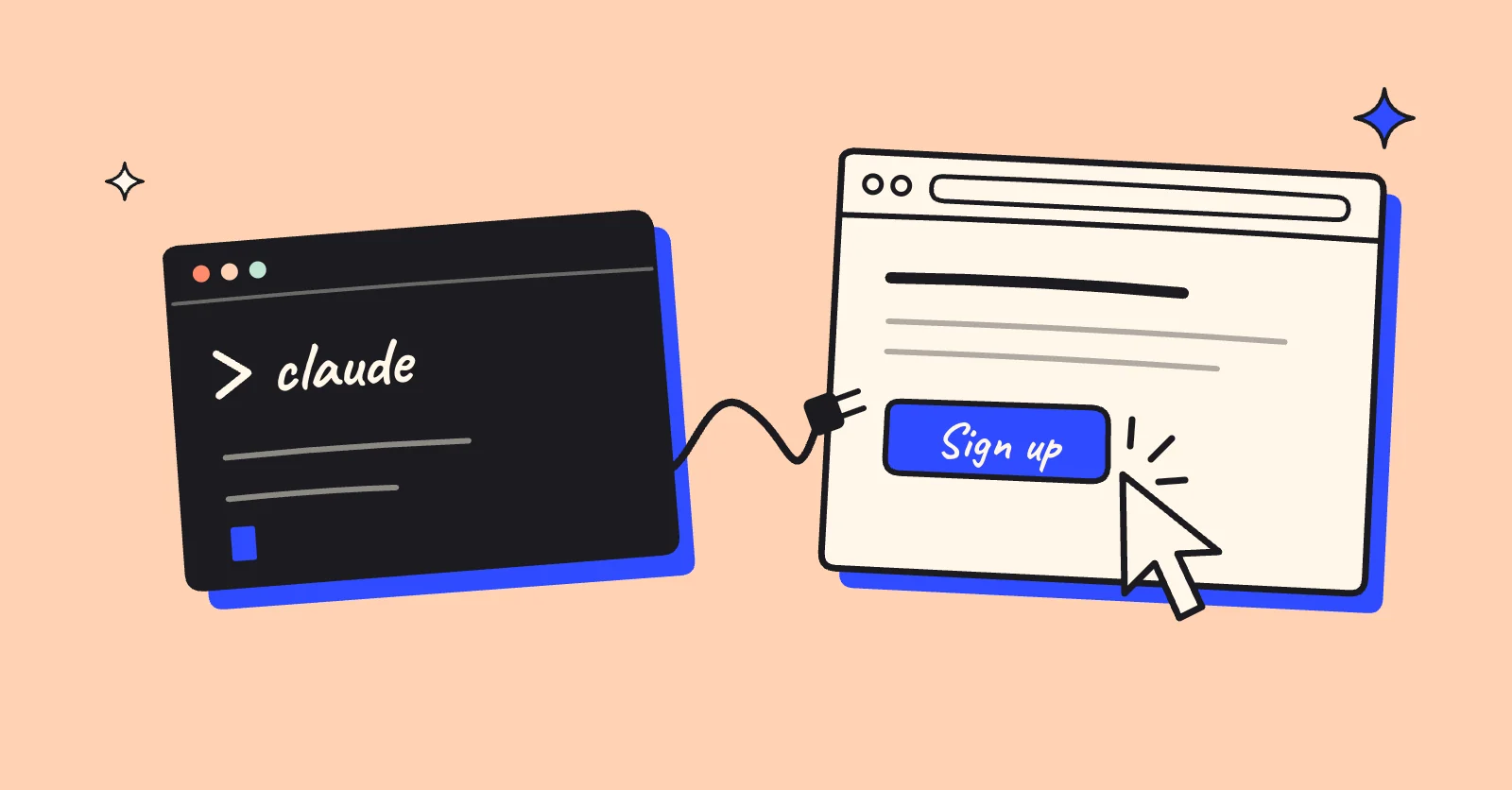
tldr: One command, claude mcp add playwright npx @playwright/mcp@latest, gives Claude Code a browser it can click through. Playwright CLI does the same job with fewer tokens. Claude in Chrome drives your own logged-in Chrome, and only on paid plans.
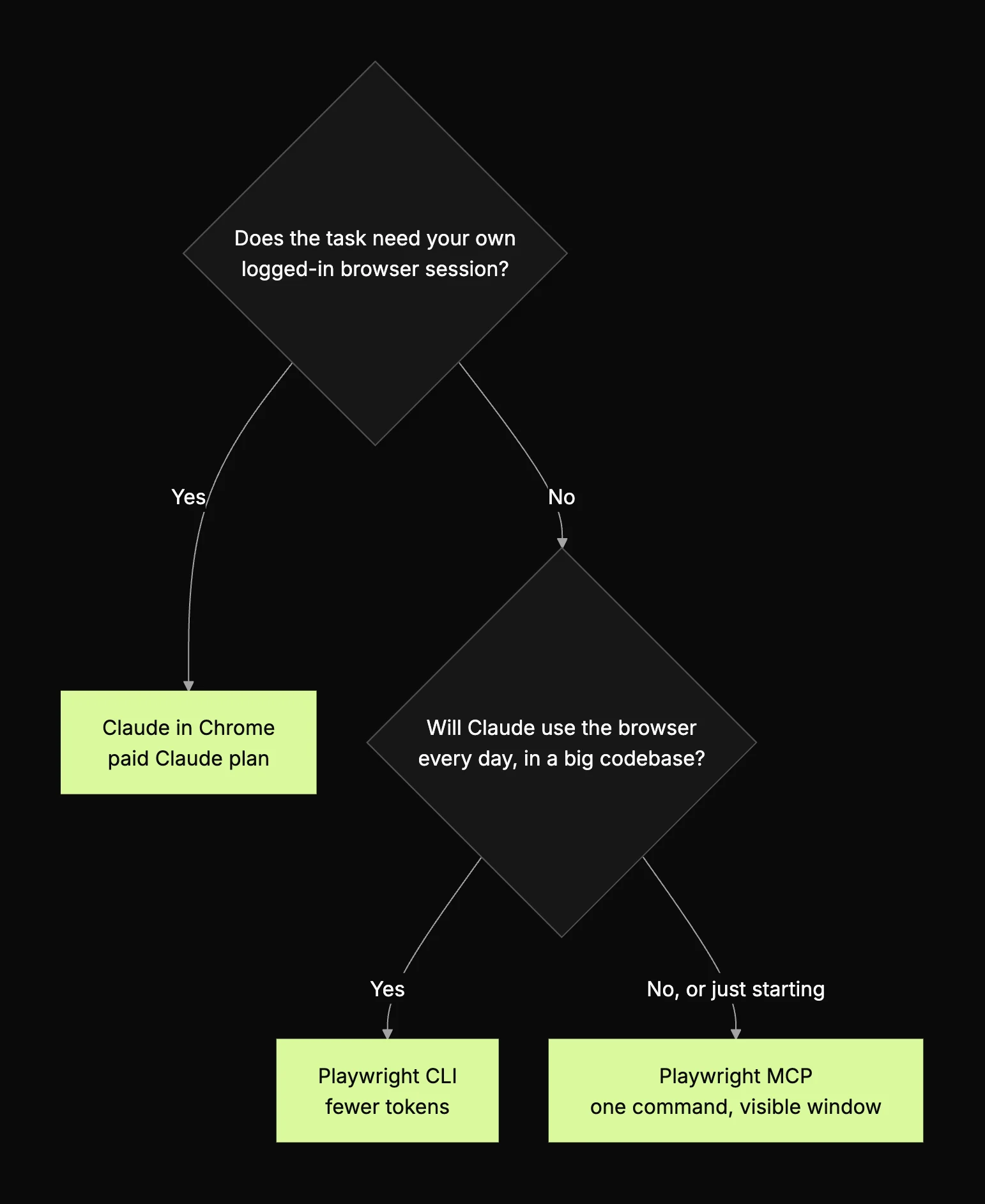
To give Claude Code a browser, run claude mcp add playwright npx @playwright/mcp@latest in your project folder, then start a new session. Claude Code can now open pages, click, type and read what rendered through Playwright MCP. Pick Playwright CLI when token cost matters, and Claude in Chrome when the task needs your own logged-in browser.
Without a browser, Claude Code writes UI code it never sees run. It edits a signup form, the types check, the unit tests pass, and nobody has clicked the button. Give it a browser and it can load the page, see what actually rendered, and fix what broke before you look.
Most guides cover one of the three ways and list tool names that have since changed. This one compares all three, checked against the official docs on October 28, 2026.
What are the three ways to give Claude Code a browser?
Playwright MCP, Playwright CLI and Claude in Chrome: two open source tools from the Playwright team, and one Anthropic extension that drives the Chrome you already use.
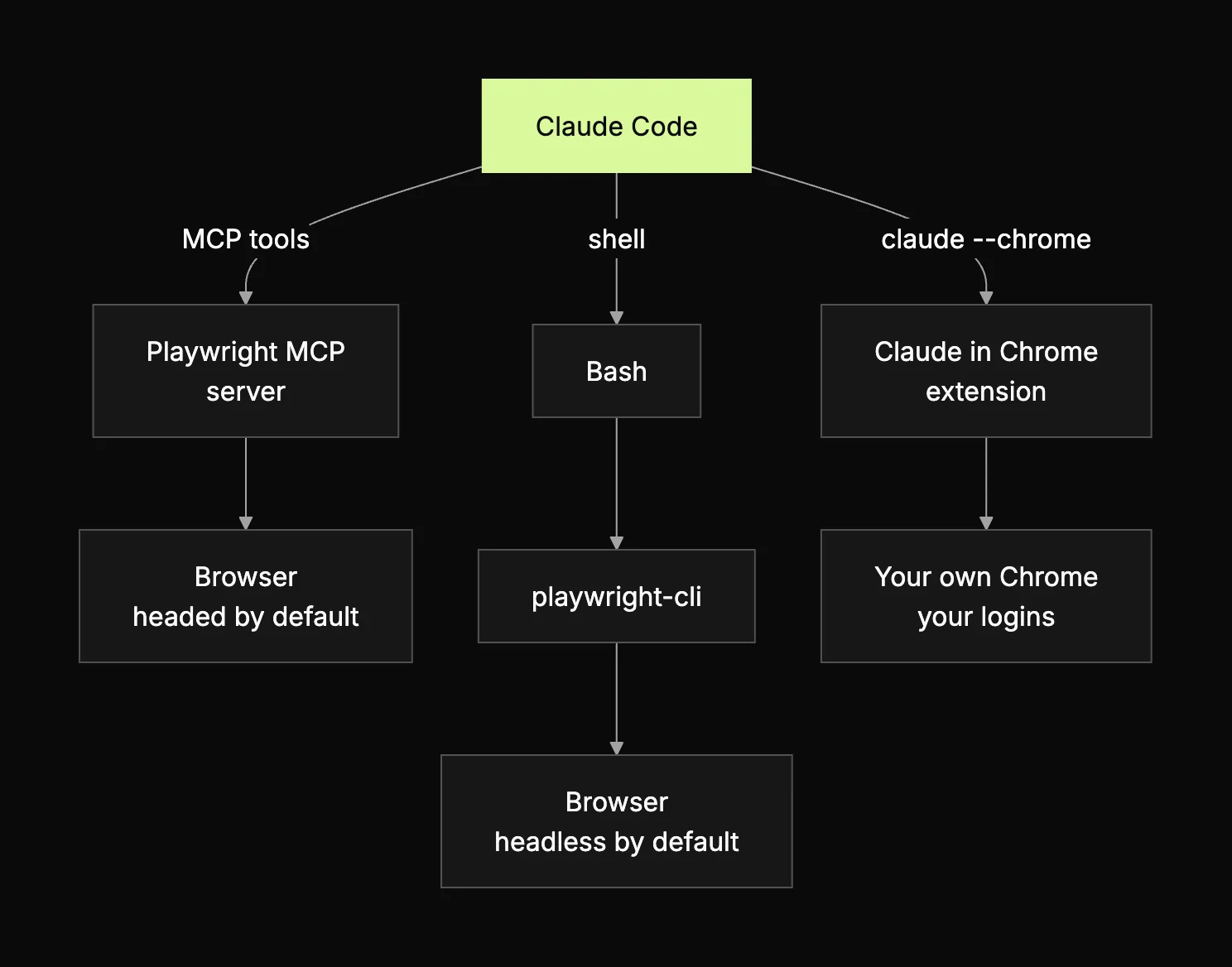
Each one reaches the browser by a different path. Playwright MCP runs as an MCP server and hands Claude Code a set of browser tools. Playwright CLI is a command Claude runs through Bash, like any other shell tool. Claude in Chrome connects Claude Code to a browser extension, so the work happens in your real Chrome profile.
| Playwright MCP | Playwright CLI | Claude in Chrome | |
|---|---|---|---|
| Setup | claude mcp add playwright npx @playwright/mcp@latest | npm install -g @playwright/cli@latest, then playwright-cli install --skills | Install the extension (1.0.36 or later), then claude --chrome |
| How it sees the page | Accessibility tree snapshots, not pixels | Short CLI output, skills loaded on demand | New tabs in your own Chrome |
| Default mode | Headed (visible browser) | Headless | Visible Chrome window |
| Token cost (per Playwright docs) | Higher: tool schemas and snapshots sit in context | Lower | Not stated |
| Login state | Persistent profile by default, --isolated for a fresh one | In memory by default, --persistent to save | Your existing logins |
| Cost | Free and open source, plus your Claude Code usage | Free and open source, plus your Claude Code usage | Needs Claude Pro, Max, Team or Enterprise |
| Best for | Exploring, long agent loops | Coding agents in large codebases | Tasks behind your own logins |
The token row matters most. Every MCP tool schema and page snapshot takes room in Claude's context window, and on a long session in a big repo that room runs out fast.
How do I add Playwright MCP to Claude Code?
Run one command in your project folder, start a fresh Claude Code session, and name the tool in your first prompt.
-
Install Node.js 20 or newer. That's what the Playwright MCP getting started page asks for. The GitHub README still says 18, so go with 20.
-
In your project folder, add the server:
claude mcp add playwright npx @playwright/mcp@latestThe default scope is
local, so the server is only registered for this project. -
Start Claude Code in that folder with
claude. If a session was already open, restart it so it picks up the new server. -
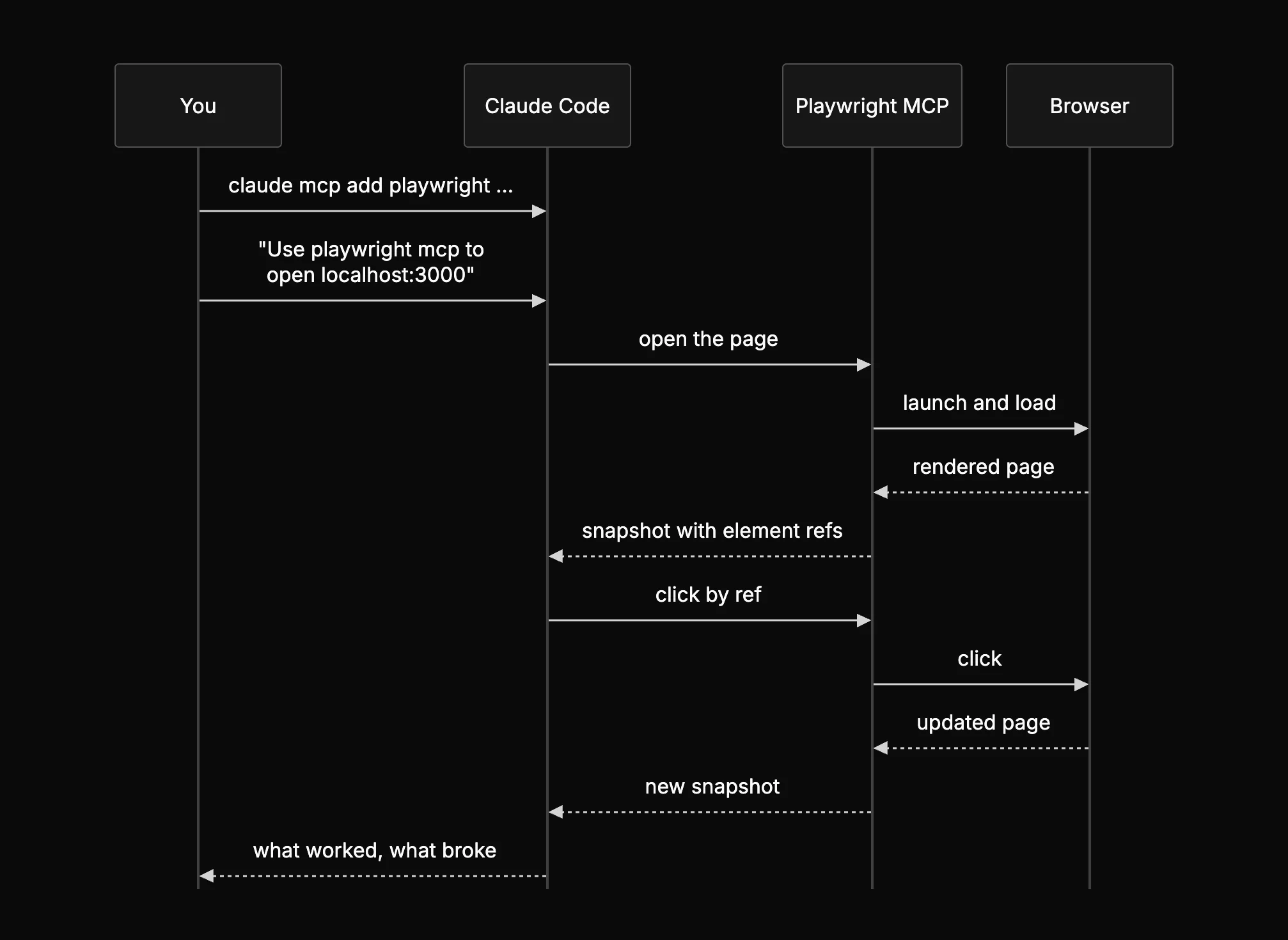
Say "playwright mcp" in your first prompt, for example:
Use playwright mcp to open localhost:3000 and try the signup form. Simon Willison found that without the explicit name, Claude may run Playwright through Bash instead. -
Watch it work. A Chrome window opens, Claude reads the page with
browser_snapshot, and clicks elements by the refs in that snapshot.browser_take_screenshotgives it a picture to look at, but the clicks still go through the snapshot.
The defaults are fine for a first run. When you need to change them, pass flags to the server after a -- separator, so Claude Code doesn't try to read them as its own:
claude mcp add playwright -- npx @playwright/mcp@latest --headless --isolated
These are the six flags you'll reach for most, as described in the Playwright MCP README:
| Flag | What it does |
|---|---|
--headless | Runs the browser without a window. Headed is the default. |
--browser | Picks the browser: chrome, firefox, webkit or msedge. |
--isolated | Keeps the profile in memory. Nothing is saved to disk. |
--user-data-dir | Points the server at a specific profile directory. |
--caps | Turns on extra tool groups, such as vision, pdf or devtools. |
--idle-timeout | Closes the browser after this many milliseconds without a tool call. Headless defaults to one hour, headed never times out, and 0 turns it off. |
One trap. By default, Playwright MCP keeps a persistent browser profile for each project, so logins and cookies survive between sessions. That profile can only be used by one browser at a time. Open two Claude Code sessions in the same project and they will fight over it. For parallel sessions, start the extra ones with --isolated or give each its own --user-data-dir.
Playwright MCP or Playwright CLI: which should Claude Code use?
Playwright's own answer is the CLI. The Playwright CLI docs say it is best for coding agents like Claude Code, because CLI commands keep large tool schemas and verbose accessibility trees out of the model's context. They position MCP for specialized loops that need persistent state and repeated reasoning over page structure, like exploratory automation and long-running autonomous workflows.
Setup is two commands:
npm install -g @playwright/cli@latest
playwright-cli install --skills
The second command installs skills that Claude Code reads for context about the available commands. From there Claude drives the browser with short shell calls like playwright-cli open https://playwright.dev, playwright-cli snapshot and playwright-cli click e15. It runs headless by default. Add --headed to open if you want to watch, and note that a headless session shuts itself down after an hour without commands.
Our take: start with Playwright MCP, because it's one command and the headed window shows you exactly what the agent does. Once a browser is part of your daily loop, switch to the CLI. The token savings compound on long sessions. Keep MCP for open-ended exploration where the agent should hold the page in mind across many steps. We went deeper on the tradeoff in Playwright CLI vs Playwright MCP.
When should you use Claude in Chrome instead?
Use Claude in Chrome when the task needs your real, logged-in browser session: an internal dashboard, a staging app behind SSO, a Google Doc.
Setup takes three steps. Install the Claude in Chrome extension, version 1.0.36 or later, from the Chrome Web Store. Sign in to Claude Code with /login. Then start a session with:
claude --chrome
Inside a session, /chrome checks the connection, manages site permissions and reconnects the extension. Choose "Enabled by default" there to skip the flag, at the cost of more context, since the browser tools then load every session.
It works differently from the Playwright tools. Actions run in a visible Chrome window in real time. Claude opens new tabs and shares your browser's login state, so it can use any site you're already signed into. When it hits a login page or a CAPTCHA, it pauses and asks you to handle it.
The limits, from the Claude Code Chrome docs and Anthropic's help article:
- It needs a direct Anthropic plan: Pro, Max, Team or Enterprise. The free plan doesn't include it.
- It stays off if you sign in with an API key or a
claude setup-tokentoken, and it isn't available through Amazon Bedrock, Google Cloud's Agent Platform or Microsoft Foundry. - Use Chrome or Edge. Claude Code also detects the extension in Brave, Arc, Vivaldi and Opera, but Anthropic's help article only supports Chrome. It isn't supported in WSL.
- JavaScript dialogs like
alert()block browser events, and Claude can't send commands until one is dismissed. - The extension's service worker can go idle in long sessions and drop the connection. Run
/chrometo reconnect. - One upload can include up to 10 MB of files in total, and credential files like
.envare refused.
It acts as you, with your accounts, and so does any page that manages to inject instructions into it. Give it tasks you'd be fine watching.
Does a browser make Claude Code a tester?
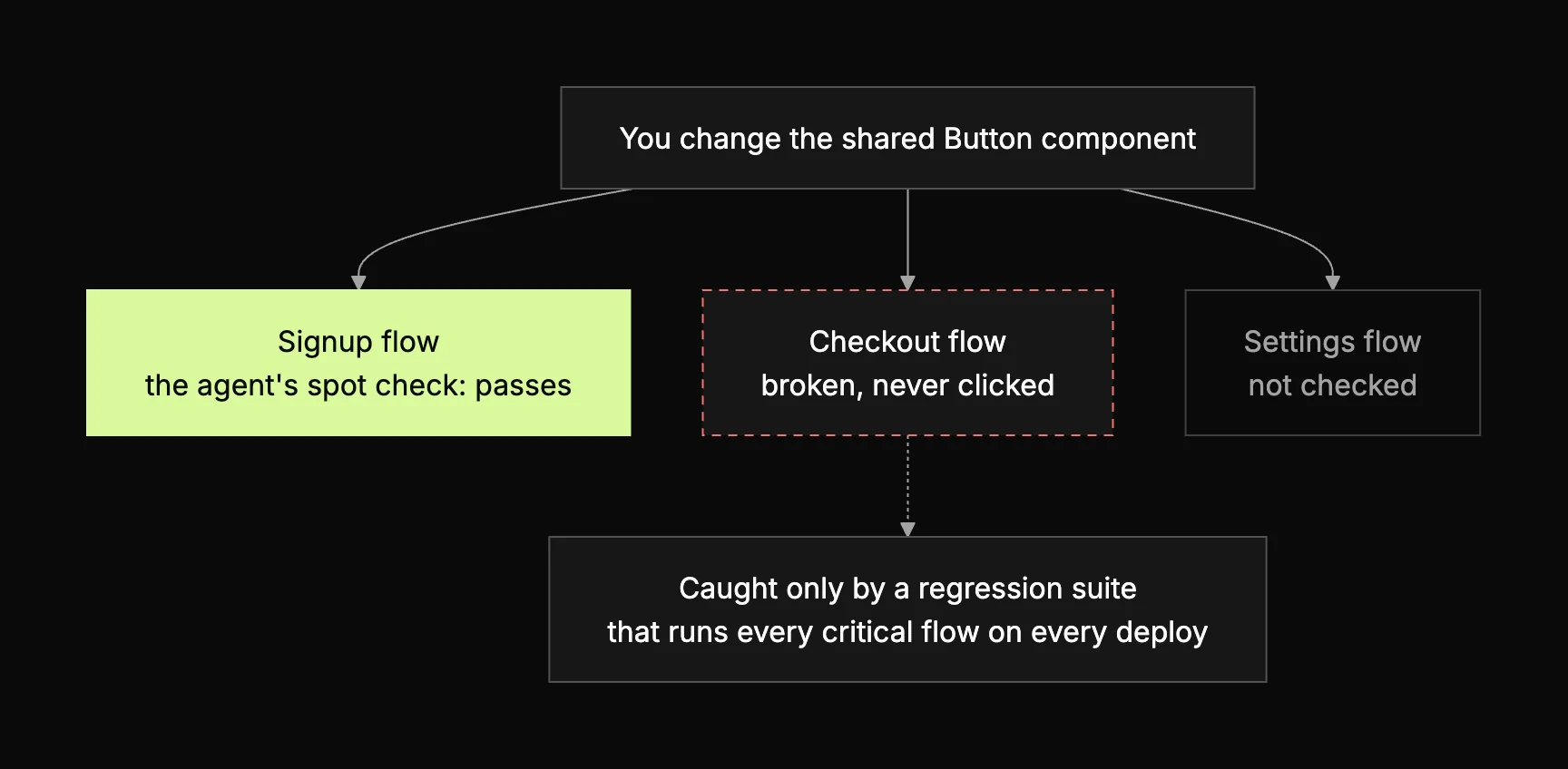
No. It makes Claude Code a better developer. An agent that clicks through the one flow it just changed is running a spot check. That catches the obvious break in front of it and nothing else.
Testing is a different job. A regression suite covers every critical flow, runs on every deploy, and someone checks the results. The checkout you didn't touch can break through a shared component you did, and a spot check never sees it. Playwright ships its own test agents for planning and generating tests, and they still need someone to own coverage and read the failures.
At Bug0, that owner is a forward-deployed engineer. They map your critical flows and build the suite on Bug0 AI, which runs it on every deploy and heals tests when the UI shifts. They check every failure before it reaches your team, so a red build means a real bug.
If you'd rather not run a browser on your laptop at all, Buildful is a background coding agent that tests every UI change in a real browser in the cloud and records it, so you can watch the run before you merge.
Frequently asked questions
What is Playwright MCP?
Playwright MCP is an MCP server from the Playwright team that lets AI agents like Claude Code control a real browser. It reads pages through accessibility snapshots instead of screenshots, so the model doesn't need vision to click and type.
How do I add Playwright MCP to Claude Code?
Run claude mcp add playwright npx @playwright/mcp@latest in your project folder, then start a new Claude Code session there. In your first prompt, say "use playwright mcp" so Claude uses the server rather than Bash. You need Node.js 20 or newer.
Is Playwright MCP free?
Yes. Playwright MCP is open source on GitHub under the Apache 2.0 license, and so is Playwright CLI. You pay only for the Claude Code usage the browser session consumes.
Is there a Claude Code Chrome extension?
Yes. Claude in Chrome is Anthropic's browser extension, and Claude Code connects to it when you start with claude --chrome. You need extension version 1.0.36 or later, Chrome or Edge, and a paid Claude plan.
Does Claude in Chrome work on the free plan?
No. Claude in Chrome needs a direct Anthropic plan: Pro, Max, Team or Enterprise. It also doesn't work when Claude Code is signed in with an API key or through Amazon Bedrock, Google Cloud's Agent Platform or Microsoft Foundry.
Which uses fewer tokens, Playwright CLI or MCP?
Playwright CLI. Playwright's docs rate its token cost lower because it doesn't load tool schemas and full accessibility trees into context. MCP costs more, but keeps richer page state for long, exploratory agent loops.
Why does Claude Code use Bash instead of Playwright MCP?
Claude Code can also run Playwright as a shell command, and sometimes it picks that route. Say "use playwright mcp" in your first prompt. If Bash keeps winning, check that you started a new session after adding the server.
Can Playwright MCP run headless?
Yes. Add --headless to the server's arguments, for example claude mcp add playwright -- npx @playwright/mcp@latest --headless. Playwright MCP runs headed by default so you can watch, while Playwright CLI is headless by default.